Rolling back a driver that broke something
The Roll Back button, the uninstall option, and the Safe Mode route for when the screen will not cooperate.
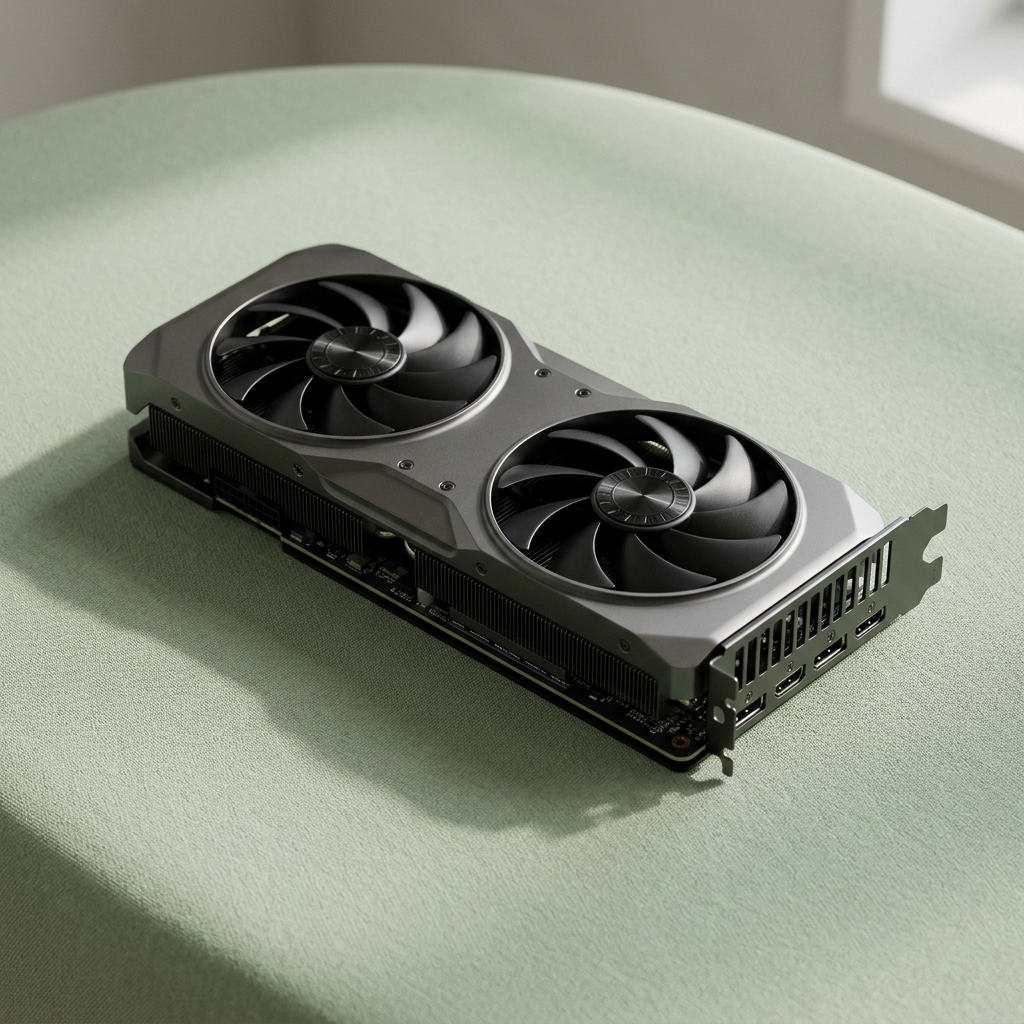
01The Roll Back button
In Device Manager, open the device’s Properties, go to the Driver tab and choose Roll Back Driver. It is only available if a previous version is stored, which is normally true right after an update.
02When the button is greyed out
Uninstall the device and tick the option to delete the driver software if offered. After restart the system installs its stored or generic driver. Then install the specific older version you trust.
03Stopping it coming back
Automatic updates may reinstall the newer driver. Most systems offer a way to pause updates temporarily or hide a specific update while the maker fixes the problem.
04Safe Mode
If a display driver leaves you with no picture, interrupt startup three times to reach recovery options, then choose Startup Settings and Safe Mode. Safe Mode uses basic drivers so you can roll back.
Safe steps
- Open the device’s Driver tab.
- Choose Roll Back Driver and give a reason.
- Restart and confirm the old version is active.
- Pause updates until a fixed version is available.
Before you start: create a restore point and back up anything you cannot replace. If a step makes things worse, roll it back.