Reinstall one device driver without losing your recovery path
Know the difference between reinstalling a device and deleting its driver package before you use Uninstall device.
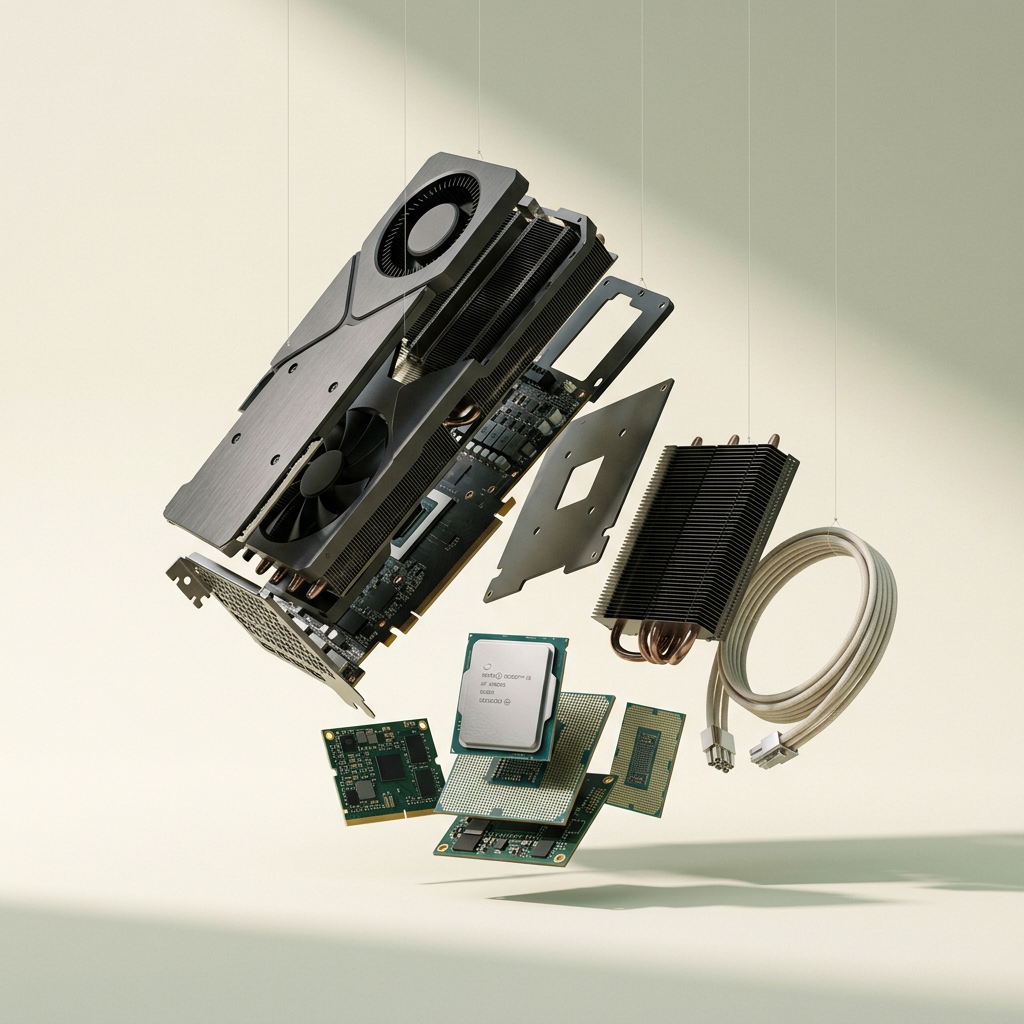
01Prepare the replacement first
Download a supported installer from the official source before removing anything. This matters especially for network adapters and input devices. Save the device details and confirm you have another way to control the computer or get online if automatic reinstallation does not succeed.
02Remove the device only when justified
In Device Manager, locate the exact device and choose Uninstall device when troubleshooting warrants it. Removing a device entry is not the same as deleting its driver package. Do not select an option to remove the package unless your documented repair procedure requires it and a recovery installer is ready.
03Detect and verify again
Restart as instructed. Windows attempts to install support for the detected device, but a suitable package is not guaranteed to be available. Use the prepared manufacturer installer if needed. Confirm the device status and test its function; reinstalling may retain the same driver version.
Steps to follow
- Save the correct official installer locally.
- Confirm the exact device and record its details.
- Follow the manufacturer’s reinstall instructions or the targeted Device Manager procedure.
- Restart, install the prepared package if needed and verify function.
Before installing, complete the driver update checklist. Record the existing version and keep a supported recovery package.
Important precautions
Never remove your only usable network or input device without an offline recovery package and another access method.
Official support and further reading
These links lead to publisher support pages, not to files hosted by daanch.