Choose a compatible driver from an official source
Match the exact hardware, Windows release and architecture instead of downloading the first similar driver name.
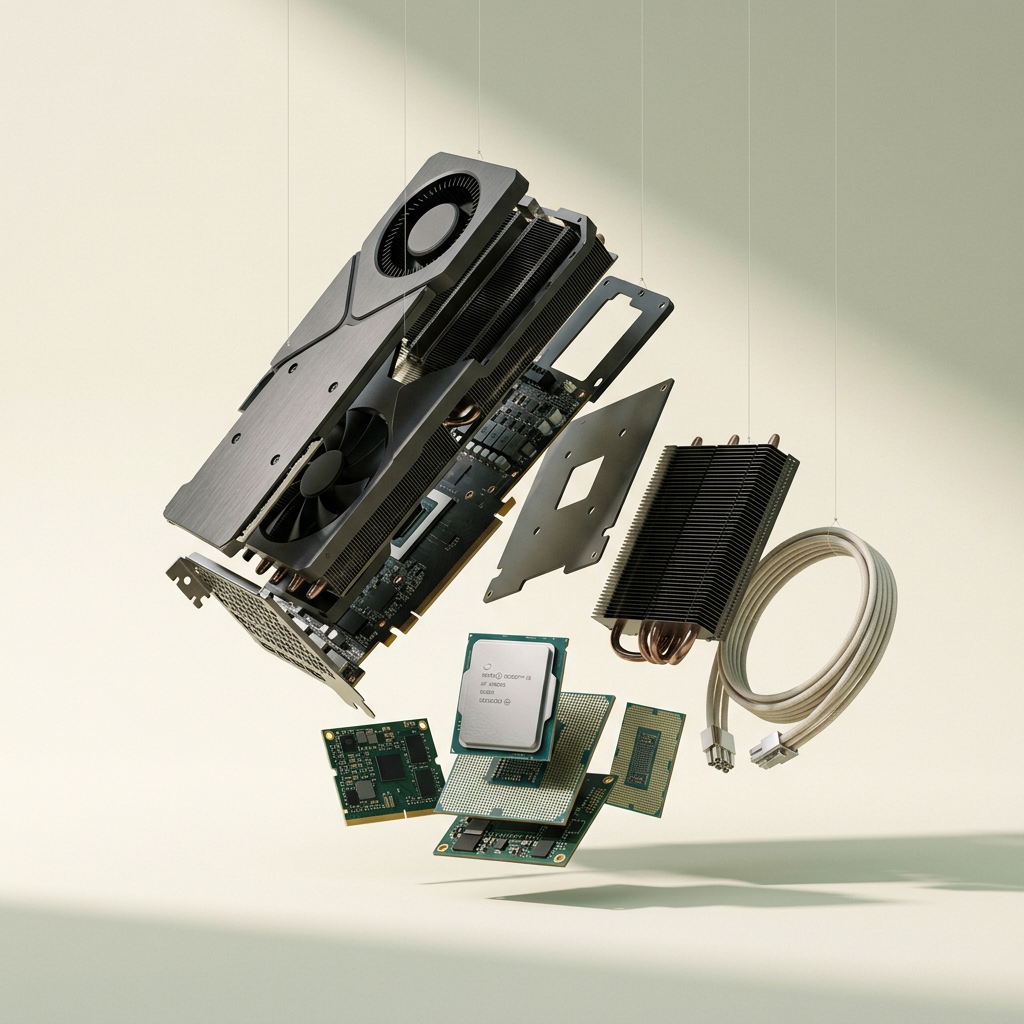
01Identify the computer and the component
For a laptop or prebuilt desktop, start with its manufacturer’s model-specific support page. The service identifier can help choose the right product, but do not post private serial numbers publicly. For a separately purchased component, use the component maker’s support page and the precise model.
02Check all compatibility requirements
A driver must support the device identifiers, Windows release and system architecture, such as x64 or ARM64. Check Settings > System > About for system information. A USB connector, a familiar brand name or a similar product photo does not prove compatibility.
03Inspect the package before installing
Read supported models, release notes and known issues. Use the official site rather than a search advertisement or repackaged download. Check the publisher information of the downloaded installer. A valid signature helps establish origin and integrity, but still does not prove the package fits your particular computer.
Steps to follow
- Record the exact device or computer model.
- Confirm Windows version and architecture.
- Read the package’s supported-device list and release notes.
- Download from the official support page and keep the installer for recovery.
Before installing, complete the driver update checklist. Record the existing version and keep a supported recovery package.
Important precautions
Do not bypass a compatibility warning or signature protection to force a package onto a different device.
Official support and further reading
These links lead to publisher support pages, not to files hosted by daanch.